The Basics
In order to allow developers to write native plugins we provide what we call inspector projects for both Android and iOS. These are Eclipse and Xcode projects that include the core library used by Forge, as well as an example plugin to get you started. This environment can be used as a sandbox to develop and compile your plugin.
Once you are happy with your plugin you can use the Toolkit to upload a compiled version with any additional files (detailed below) to the Forge build server. Once we have a copy of your plugin you can then add the plugin to your app through the app's config in the Toolkit.
Downloading the inspector projects
Getting setup to develop native plugins is fairly simple, but there are some prerequisites you need to install.
Android
- You will need Eclipse setup with the Android SDK, you can find details on how to install this on the Android developer site: http://developer.android.com/sdk/installing/index.html
- Download the ForgeInspector project through the Toolkit. You should be able to do this from the plugin's toolkit page once you have a local template setup. If you can't see plugins in the Toolkit, then contact us at support@trigger.io to get into the native plugins beta.
- ForgeCore, ForgeInspector and ForgeTemplates should have been downloaded to the inspector/an-inspector directory
- In Eclipse, go to File then Import Project... and import the an-inspector directory: all three projects will appear in Eclipse
iOS
- You will need a Mac running OS X
- You will need Xcode 4.5, this is available as a free download in the OS X App Store
- Download the ForgeInspector project through the plugin's page in the Trigger Toolkit.
- Open this project in Xcode.
At this point you can run the inspector project. It includes an app which can list native methods exposed to Javascript and allows you to call them with sample data. It also includes a small example plugin called alert which allows you to show native alert style dialogs, and triggers an event in Javascript when the app is paused and resumed. It is probably a good idea to try out this plugin to get a feel for the layout of a plugin before you get started.
Updating inspector projects
Some plugins will need to make changes to the Forge build process, such as including 3rd party frameworks, registering a URL handler or requesting app permissions. In order to do this, additional steps can be included in a plugin which will be run when the plugin in used in an app.
When you update your plugin's build steps or change the platform_version in manifest.json, your inspector project will need to be updated.
The Toolkit will remind you automatically when an update is required, and the code and any resources for your plugin will be preserved.
Structure of the inspector projects
General
- The assets folder contains files loaded into the webview, i.e. HTML/JS/CSS files.
- The assets/forge folder contains a prebuilt all.js which should not need to be modified.
- The assets/src folder contains a prebuilt Forge app designed for testing plugins, allowing you to run API methods from a simple web based GUI within the app. It is not recommended you modify this app, as it is re-generated and overwritten when the Inspector project is updated. Instead, it is better to write tests for your plugin - see Testing your plugin.
Android
- Plugins must contain a package io.trigger.forge.android.modules.<plugin> where <plugin> is the plugin name you gave at creation time.
- This package must contain an API.java file which is the API exposed to Javascript, see API methods.
- It can also contain an EventListener.java to listen for native events, see Events.
- An example plugin is included in io.trigger.forge.android.modules.alert
Important
On Android you should only need to modify files in ForgeModule/src directly, any other changes should be done using build steps.
iOS
The iOS inspector project should look something like this:
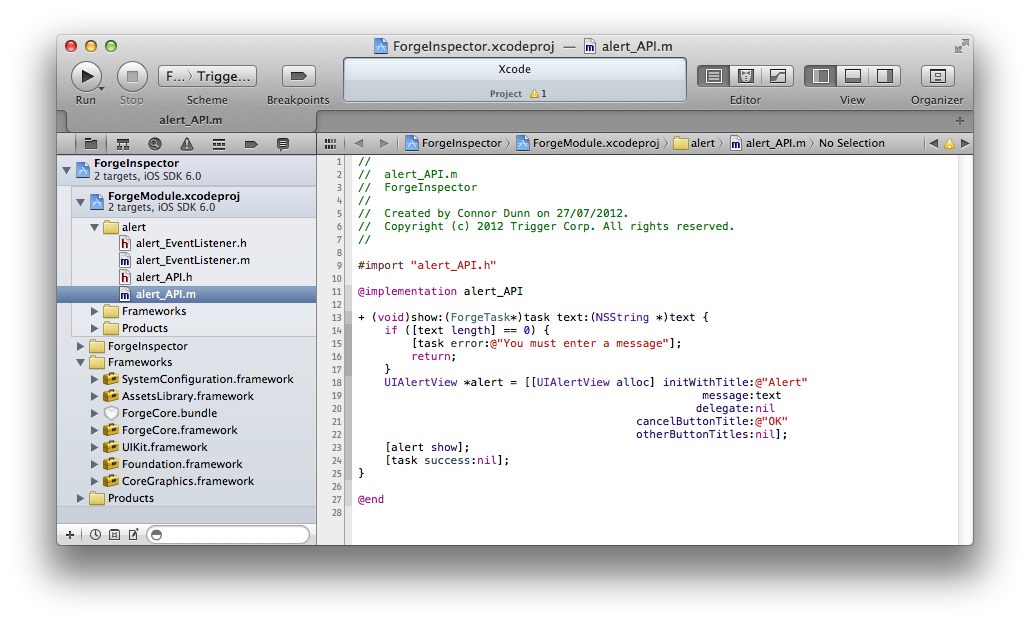
The ForgeModule subproject is used to contain the code and resources for your plugin, and the ForgeInspector outer-project is the sandbox you can run and test your plugin in before packaging it up to send to Trigger.io.
- There is no namespacing in Objective-C, you can create files in any structure you like in the ForgeInspector project.
- Files to be included in the plugin build should be in the ForgeModule project and included in the ForgeModule target.
- Plugins must include a <plugin>_API.m file which is the API exposed to Javascript. See Exposing native APIs to Javascript.
- Plugins can also contain <plugin>_EventListener.m, to listen for native events, see Handling native events.
- An example plugin is included in ForgeModule/alert/alert_API.m
Important
On iOS you should only add or change files in the ForgeModule project.
Structure of a plugin
In order to upload a plugin you must put the files that make up a plugin, along with a manifest for the plugin in a particular structure in a folder. To help you get started, the Trigger Toolkit can create an initial plugin folder and manifest.json for you. To do this, choose "Create new local version" after creating a new plugin in the Toolkit.
Plugins take the following structure:
.trigger/                                - Contains code used by the Toolkit to help develop your plugin
plugin/                                  - The parts of your plugin that are uploaded to be used when building apps
       manifest.json                     - Contains the basic properties for your plugin
       android/                          - Folder containing all android related files
               plugin.jar                - Built Android code
               build_steps.json          - Android build steps, see native build steps
               res/                      - Android resource files, see including resources
                   values/
                          myvalues.xml
               libs/                     - Android libraries
                    mysdk.jar
                    arm/
                        mynativesdk.so
       ios/                              - Folder containing iOS related files
           plugin.a                      - Built iOS plugin
           build_steps.json              - iOS build steps
           bundles/                      - iOS bundles (resources) to include
                   myplugin.bundle
                   mysdk.bundle
       javascript/
                  plugin.js              - Javascript code for your plugin, generally used to expose your plugins API.
       tests/                            - see Testing your plugin
             automated.js                - Automated tests for your plugin
             interactive.js               - Tests for your plugin that require user interaction
             fixtures/                   - Files your tests require to run
                      test.png
inspector/                               - Inspector projects used to develop your plugin
          an-inspector/                  - Android inspector project
          ios-inspector/                 - iOS inspector project
          ios-inspector.2012-11-19       - A backup of a previous version of the iOS inspector
manifest.json
The manifest for a plugin looks something like:
{
    "description": "Example alert box plugin",
    "name": "alert",
    "uuid": "e5ed6305192f11f4efde406c8f074dfa",
    "version": "1.0",
    "platform_version": "v1.4.26"
}
All of its fields are required - a template manifest.json will be generated for you when you create your plugin in the toolkit.
Note
The platform version for your plugin does not need to match your app, you only need to update your plugins platform version if you require newer plugin feature, or if the Toolkit prompts you to.
Testing your plugin
An inspector app is included which allows you to view and invoke all available API methods, as well as run your test files.
To run the inspector app from Xcode, select the ForgeInspector target and an appropriate device or simulator:

In Eclipse, select the ForgeInspector project and choose to run it as an Android application.

For more detailed information on writing and running tests for your plugin see Testing your plugin.
Building/packaging your plugin
Android
To build and export your plugin to be included in an actual Forge app:
- Right click the src folder and choose Export...
- Use the wizard to export the contents of the folder as a JAR
- Export generated class files and resources should be checked.
- Save that jar as android/plugin.jar in your plugin folder.
iOS
To build and export your plugin to be included in an actual Forge app, choose the UniversalForgeModule target and press Run. A file build/plugin.a should appear in the ForgeInspector folder: save that file as ios/plugin.a in your plugin folder.
Expected workflow
The inspector app is a convenient way to check that your plugin works properly, before exporting it and uploading it to Trigger.io.
Using the default app supplied by the inspector app, you can send messages to your plugin to check it responds correctly, and check that it fires the right Javascript events when required.
To perform more detailed tests of your plugins you should write automated or interactive test files, these will allow you to fully exercise your plugin through the inspector project.